
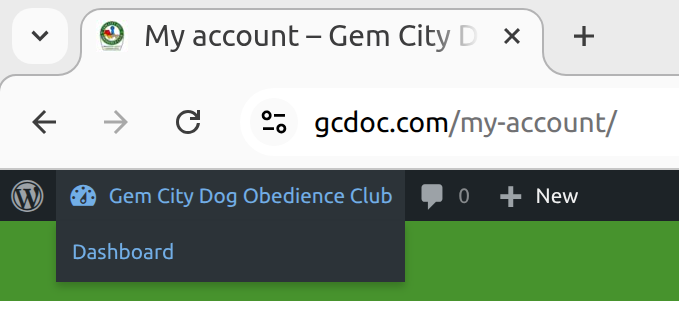
After you have logged in, click on the "Dashboard" from the menu in the black bar.
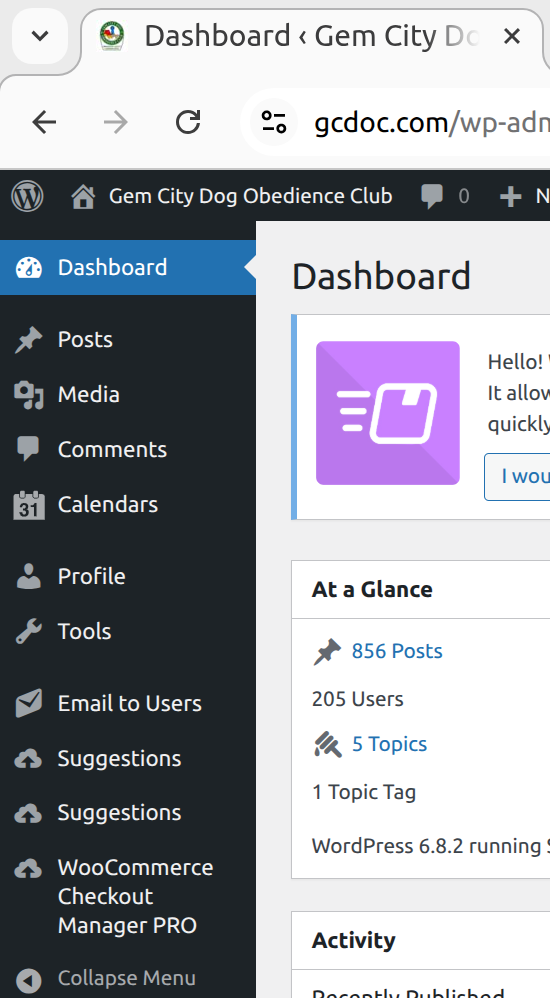
Once in the Dashboard, look to the menu on the left, and go to "Email to Users"
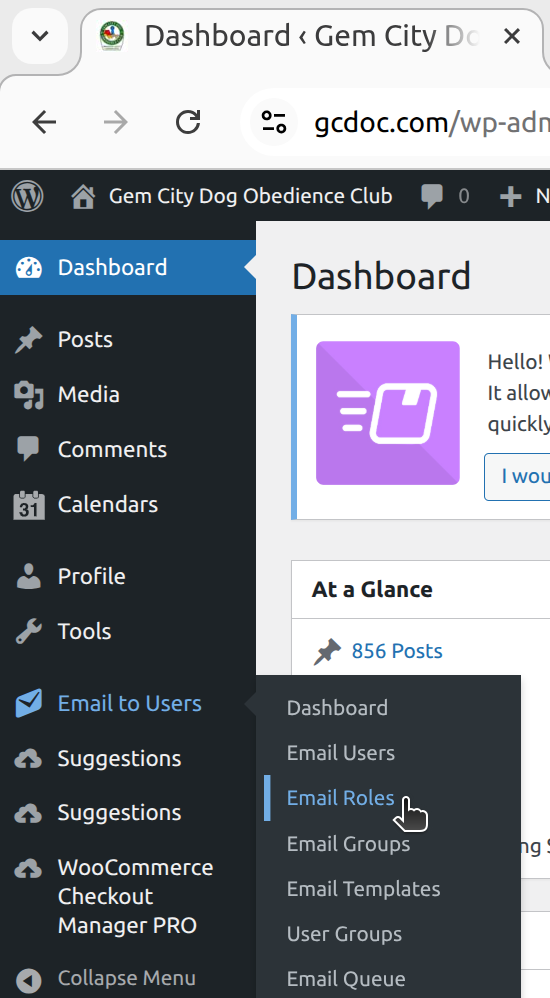
Select "Email Roles"
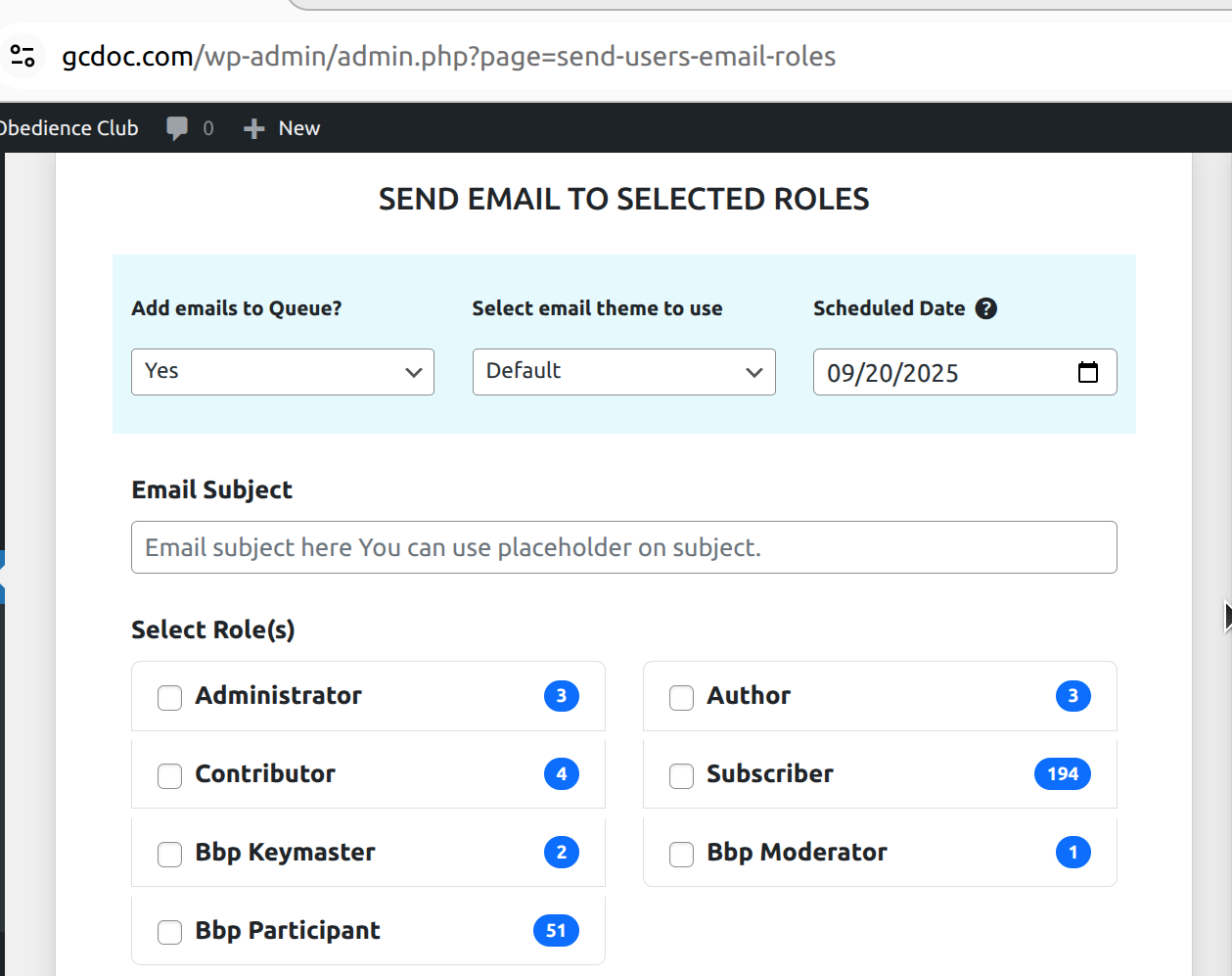
Leave the default to "ADD TO QUEUE" SET TO YES!!
Type in your email Subject!
Select roles to send to:
- Check mark the "Roles" you want to send to.
- NOTE: any roles listed as "Bbp" are not necessary, Administrator, Author, Contributor, and Subscribers must all be selected so that ALL members get your email
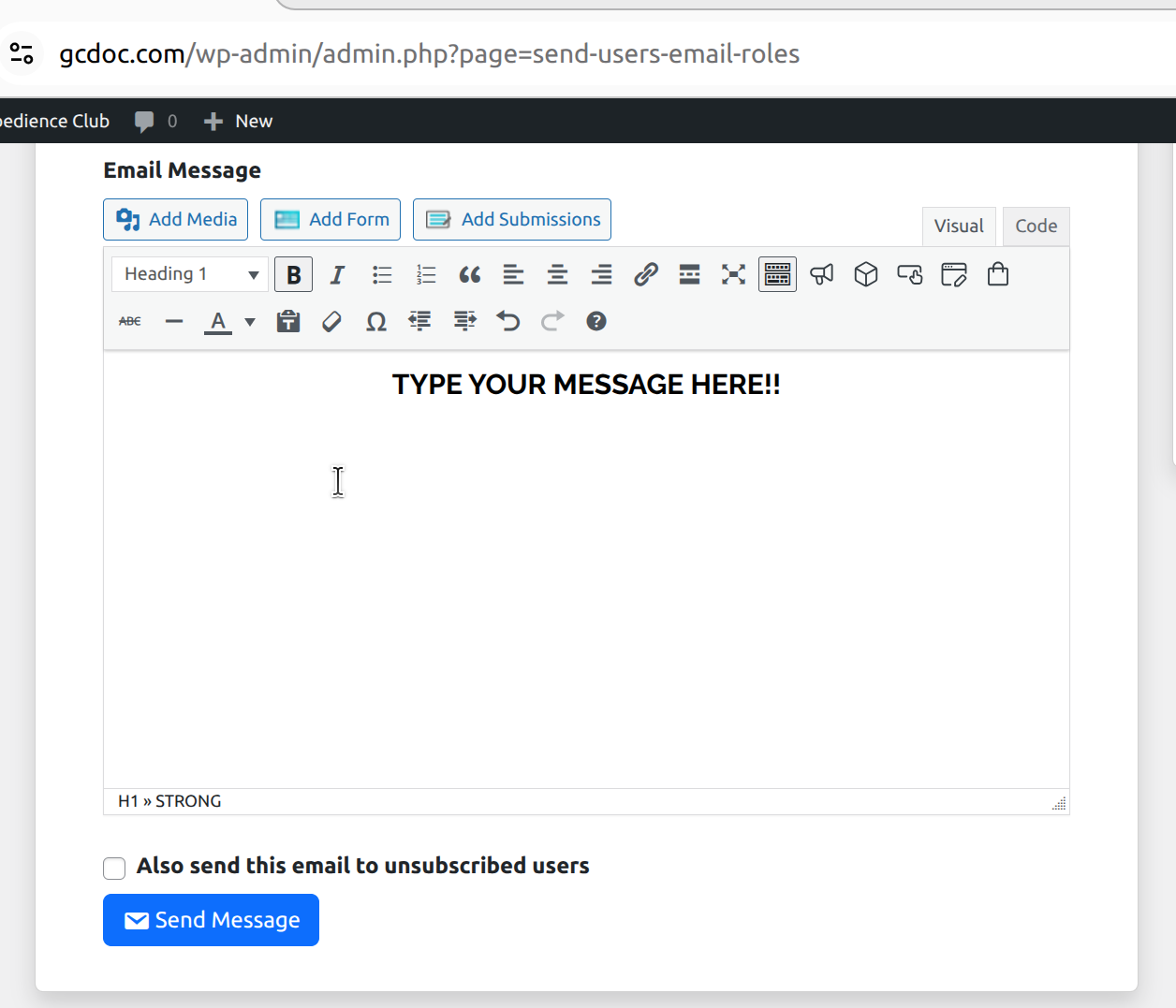
Scroll down to the big box for text. There's options for making the text bold, italics, links, quotes, etc.
Check your spelling, and click Send!
*** NOTE:
Emails take a bit longer to send out now. They are sent in batches of 80 at a time, every 5 minutes. We have just over 200 members, so emails take around 15 minutes to go out to EVERYONE after you hit the send message button.
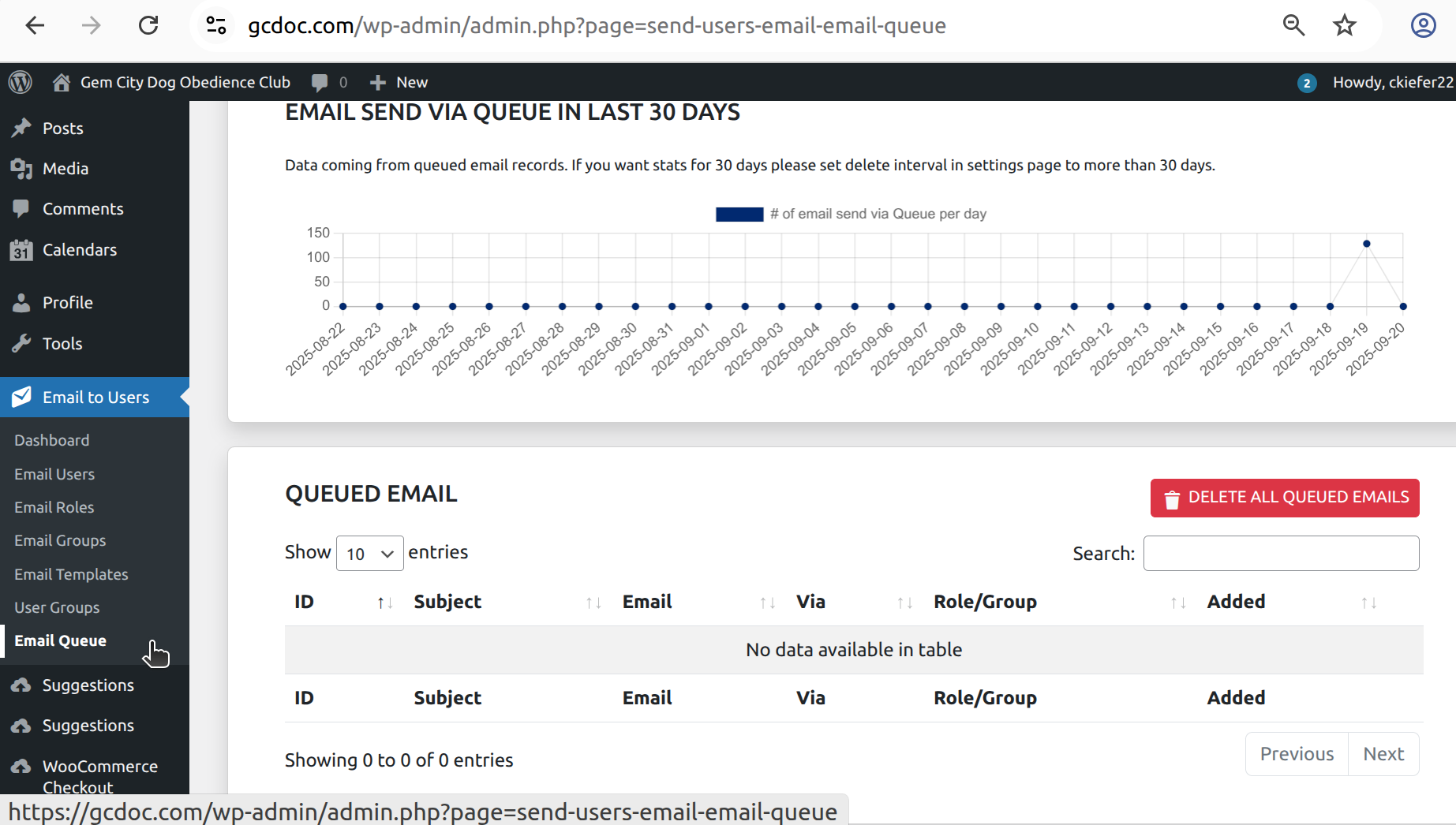
Do you feel uncertain if your email went out?
Click on the left side menu where it says "Email Queue" and check to see if your email is in there, waiting to be sent!